Explore overview
Explore is the second tab in the bottom navigation (between Shop and Cart).
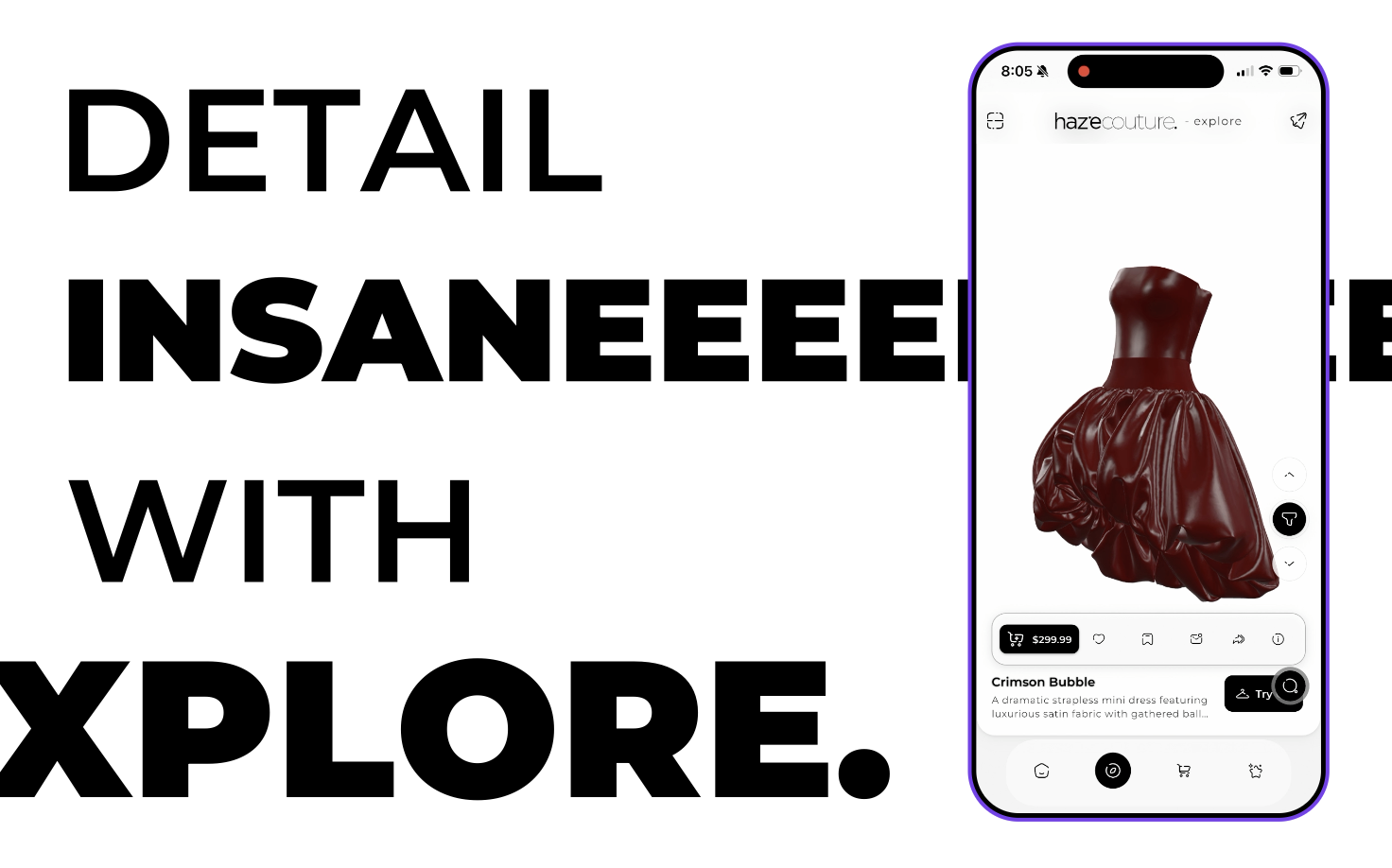
It displays a vertical feed of outfit pages. Each page is a large outfit card featuring:
• A full outfit image
• Outfit name
• Possible quick actions
You can:
• Swipe vertically to browse outfits
• Switch categories at the top (e.g. Trending)
• Use a floating filter button
• Tap an outfit to open its detail
• Launch Magic Search from this screen
The feed is curated or personalized. You do not create the feed content, but you can interact with it (like, save, try on, add to cart).
When you see it
• Bottom navigation → Explore tab
• Tap the Explore icon (second tab).
• The Explore feed opens.
How it works
1. Open Explore
• Tap the Explore tab in bottom navigation.
• The feed loads (or uses cached content).
• You see a vertical list of outfit pages.
• A loading indicator may appear while content loads.
2. Browse the feed
• Swipe up or down to move between outfit pages.
• Each page typically shows:
• Large outfit image
• Outfit name
• Possibly price or subtle action indicators
Each page represents one outfit.
3. Change category (if available)
• Category chips or tabs appear at the top (e.g. Trending).
• Tap a category to filter the feed.
• The feed refreshes to show outfits in that category.
4. Use filters
• Tap the floating filter button (usually on the right side).
• A filter overlay opens.
• Select filters (e.g. style, occasion, price).
• Apply or clear filters.
• Close overlay → feed updates.
5. Open outfit detail
• Tap an outfit page.
• Outfit detail opens (overlay or new screen).
From detail you can:
• Read description
• Try on
• Add to cart
• Like
• Save
• Share
6. Launch Magic Search
• Tap the Magic Search floating widget.
• The Magic Search overlay opens.
• You can search outfits or inspos.
7. Pull to refresh
• Pull down on the feed.
• The latest outfits reload.
What each button and control does
App bar (top)
Logo / Title
• Branding only (or standard app bar behavior).
Messages (if shown)
• Opens Chat home screen.
Refresh (if shown)
• Reloads the Explore feed.
Category tabs / chips
Trending (or default category)
• Shows the main or general feed.
Other categories
• Tap to filter the feed.
• Feed updates to selected category.
Outfit feed (vertical scroll / Page View)
Swipe / Scroll
• Move between outfit pages vertically.
Tap page
• Opens outfit detail.
Outfit detail (opened from Explore)
Outfit information
Name & description
• Read-only.
• May expand with “Read more”.
Actions
Try On
• Opens Shop 3D.
• Requires body scan.
Add to cart
• Adds outfit to cart.
• May require size selection.
Like (heart)
• Toggles liked state.
• Saves to liked items.
Save
• Saves outfit for later.
Share
• Opens share overlay.
Close
• Returns to Explore feed.
Floating filter button
• Tap → Opens filter overlay.
• Apply / Clear filters.
• Close → Feed refreshes.
• Drag (if supported) → Repositions button.
Magic Search widget
• Tap → Opens Magic Search overlay.
• Same behavior as on Shop 2D.
Bottom navigation
Shop
• Opens Shop 2D.
Explore
• Current tab.
Cart
• Opens Cart.
Muse
• Opens Muse.
Creating / editing
You cannot create or edit Explore feed content.
You can:
• Like outfits
• Save outfits
• Add to cart
• Try on outfits
These actions affect your account but do not change the feed.
Deleting
There is no “delete” action for Explore content.
To remove from your account:
• Unlike an outfit
• Remove from saved
• Remove from cart
Tips and limits
• Scroll position may be restored when returning to Explore.
• Categories and filters may vary by build.
• Body scan is required for Try On.
• Feed content is curated or algorithm driven.