How to shop and style outfits in 3D
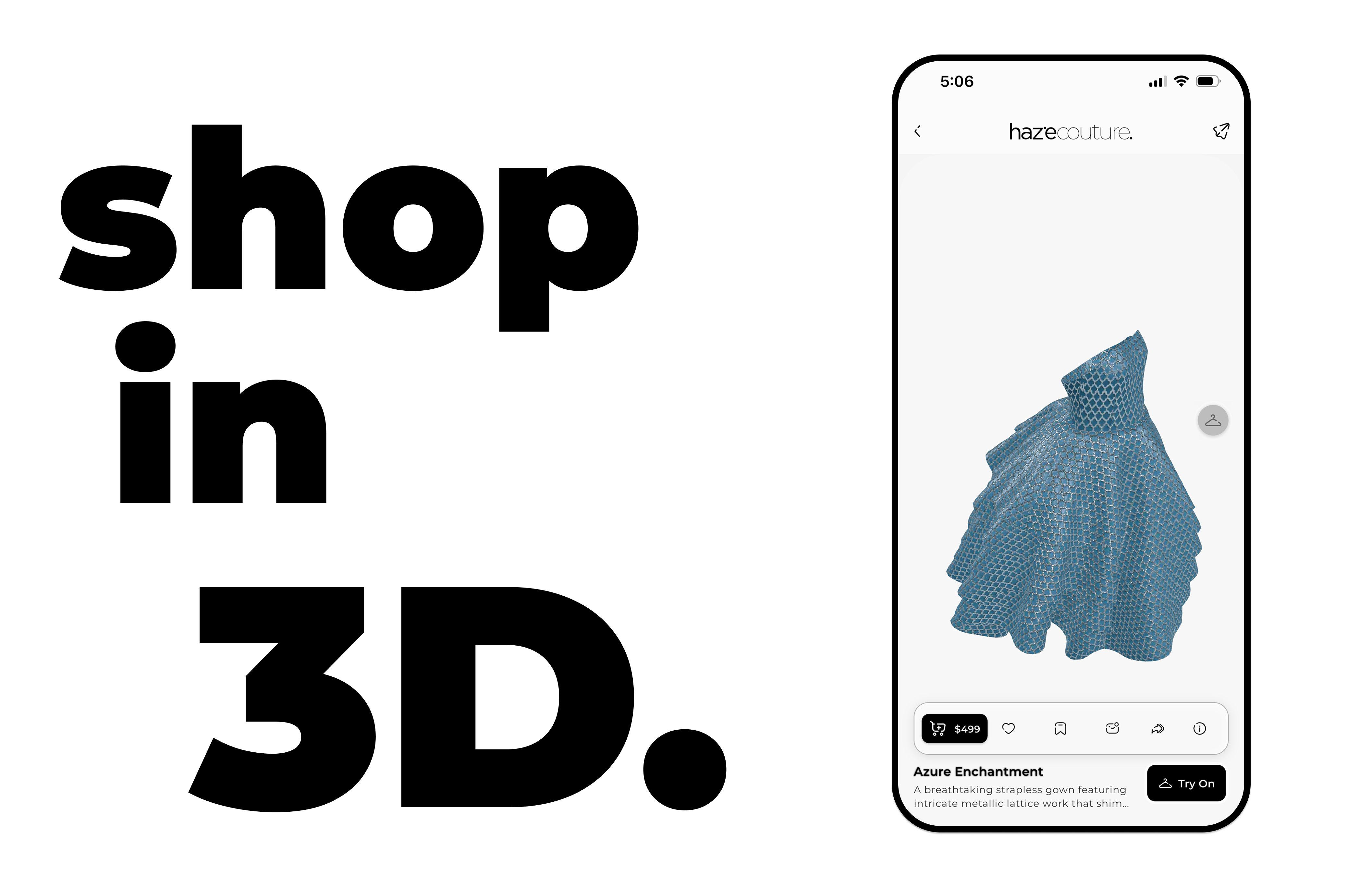
Shop 3D is the detail view for a single clothing item or outfit.
Here you can:
• View the item in 3D
• Read product details
• Select size
• Like or save the item
• Add it to cart
• Try it on using your body scan
Shop 3D opens when you tap an outfit from the main Shop.
How to Open Shop 3D
You can open Shop 3D by:
• Tapping an outfit in Shop
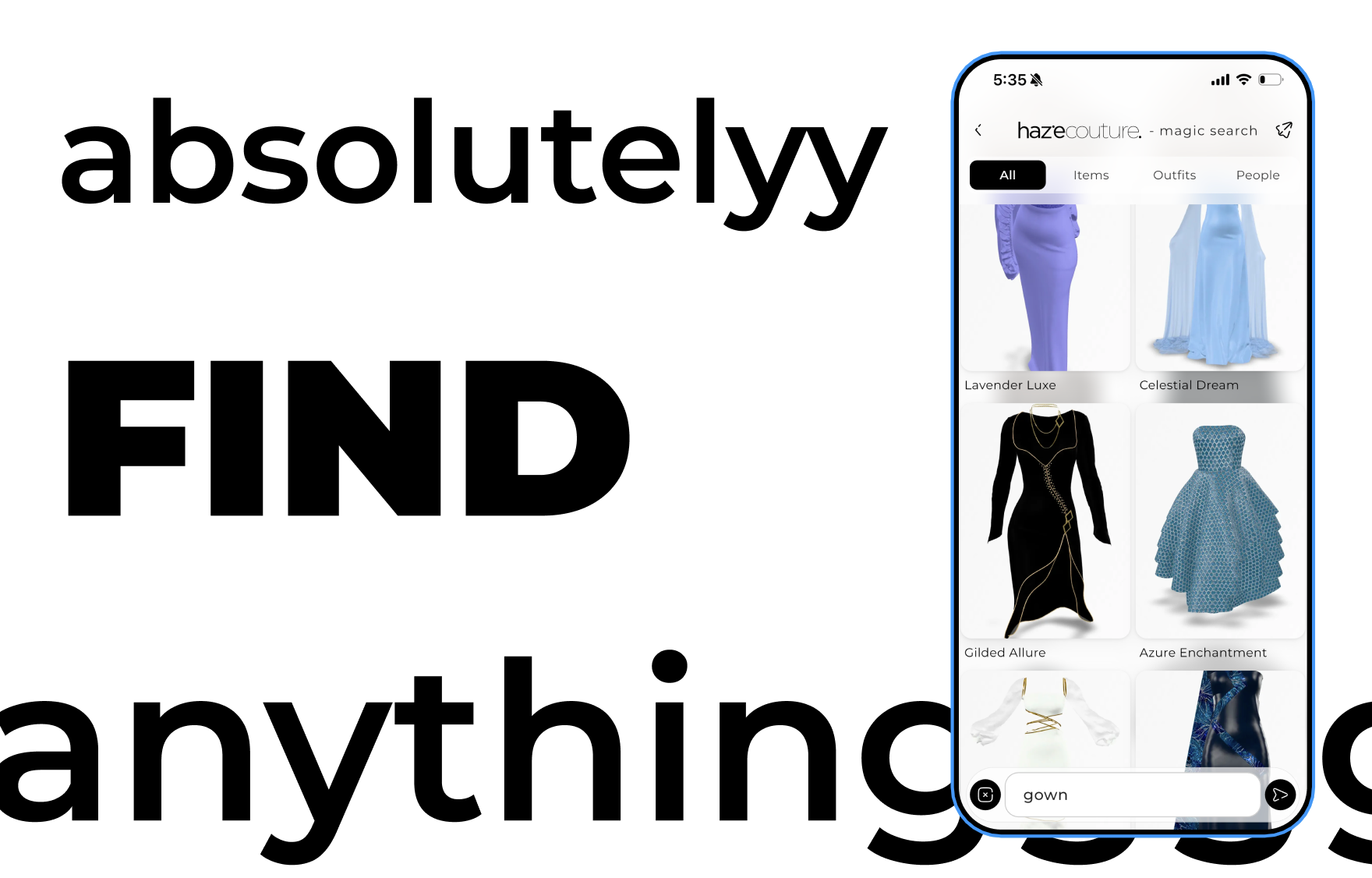
• Selecting a product from Explore
• Opening a result from Magic Search
• Starting a try-on from a wardrobe or inspo post
Understanding the Layout
Shop 3D has three main areas:
1. The main viewer
2. The bottom detail sheet
3. Optional floating wardrobe
Viewing the Item
3D Viewer
At the top of the screen, you’ll see the 3D model (if available).
You can:
• Rotate the model
• Zoom in or out
• Pan around (if supported)
If no 3D model is available, a message will appear instead. You can still use all other features.
Using Try On
Tap Try On in the bottom sheet to see how the item looks on you.
When Try On is active:
• You may switch between Image and Video
• 3D try-on may appear if available
• Tap Exit Try-On to return to the product view
Try On requires a completed body scan.
If you don’t have one, you’ll be prompted to complete it first.
Using the Bottom Sheet
Drag the sheet upward to expand it.
It includes:
Item or Outfit Name
Display only.
Price
Display only.
Description
Tap to expand or collapse.
Size Selector
Select a size before adding to cart (where applicable).
Like (Heart Icon)
Tap to save or unsave the item.
Add to Cart
Adds the selected item or outfit to your cart.
Try On
Starts AI try-on mode.
Switching Items in an Outfit
If you’re viewing an outfit:
• The bottom sheet may list individual clothing items.
• Tap any item to load it as the main view.
• You can then try it on or add it to cart separately.
Floating Wardrobe (If Visible)
You may see a wardrobe widget on the screen.
• Tap to expand it
• Select a wardrobe
• Tap Try On to preview wardrobe combinations
• Tap Open to manage the wardrobe
You can drag the widget to reposition it.
Going Back
Tap the back arrow to return to the previous screen (Shop, Explore, etc.).
Important Notes
• A body scan is required for Try On.
• Size must be selected before adding to cart (if applicable).
• You cannot edit product details.
• Removing items from the cart must be done in the Cart tab