How to use Try Ons
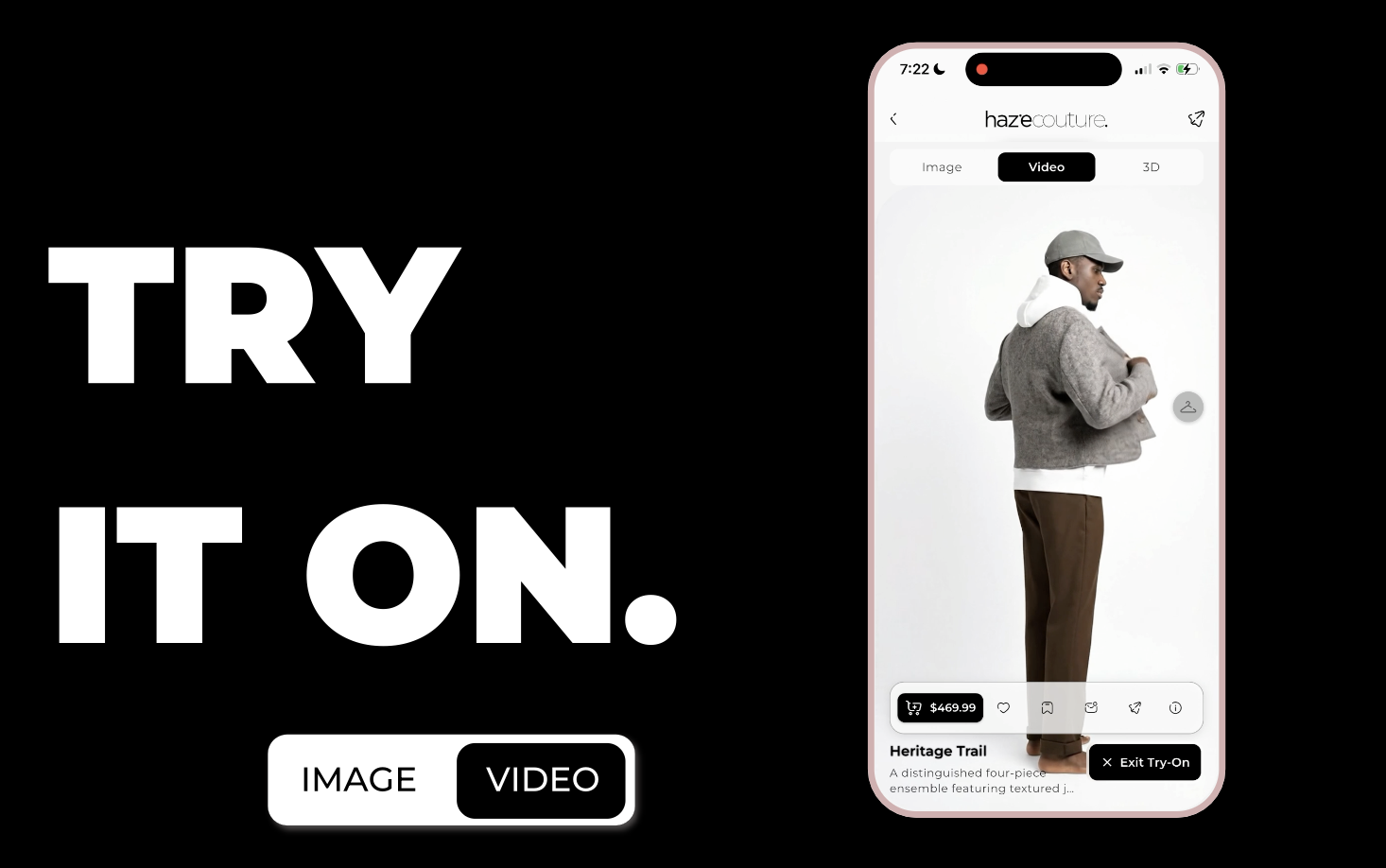
Try Ons let you see how clothing items or outfits look on you.
Using your body scan, the app generates:
• A try-on image
• A try-on video (when available)
• A 3D try-on view (if supported)
You can try on:
• A single clothing item
• A full outfit
• Multiple items together (from a wardrobe or inspo)
How to Start a Try On
You can start a try-on from several places.
From Shop 3D
1. Open an item or outfit.
2. Tap Try On.
From a Wardrobe
1. Open or expand a wardrobe.
2. Tap Try On.
The selected wardrobe items will open in try-on mode.
From an Inspo Post
1. Tap Try On on the post.
2. The selected item(s) will open in try-on mode.
What Happens Next
After you start a try-on:
1. The app begins generating your preview.
2. A loading state appears.
3. The try-on image usually appears first.
4. The video may load shortly after.
Viewing Your Try-On
In try-on mode, you may see tabs at the top:
Image
Shows a static image of you wearing the item(s).
Video
Shows a generated video (if available).
3D
Shows a 3D try-on view, or a message if not yet supported.
In some layouts, you can swipe between Image and Video.
Exiting Try-On Mode
Tap Exit Try-On or use the back button.
• If you started from Shop 3D, you’ll return to the product view.
• If you started elsewhere, you’ll return to the previous screen.
Try-On History
Your past try-ons are saved in Try-On History.
From there, you can:
• View previous try-on results
• Reopen past previews
• Refresh the list if it fails to load
Availability of filters or delete options depends on your app version.
Requirements and Limits
Body Scan Required
You must complete a body scan before using Try On.
If you haven’t completed one, you’ll be prompted to do so.
Multiple Items Limit
Wardrobe or inspo try-ons may have a maximum item limit (for example, up to 10 items).
If exceeded, the app will notify you.
Generation Time
• Images usually load first.
• Videos may take longer to generate.
• 3D try-on may not be available for all items.
Important Notes
• You cannot manually edit a try-on result.
• To generate a new result, start a new try-on.
• First Looks are pre-generated previews and are separate from starting a new try-on manually.