How to view and try Inspo outfits
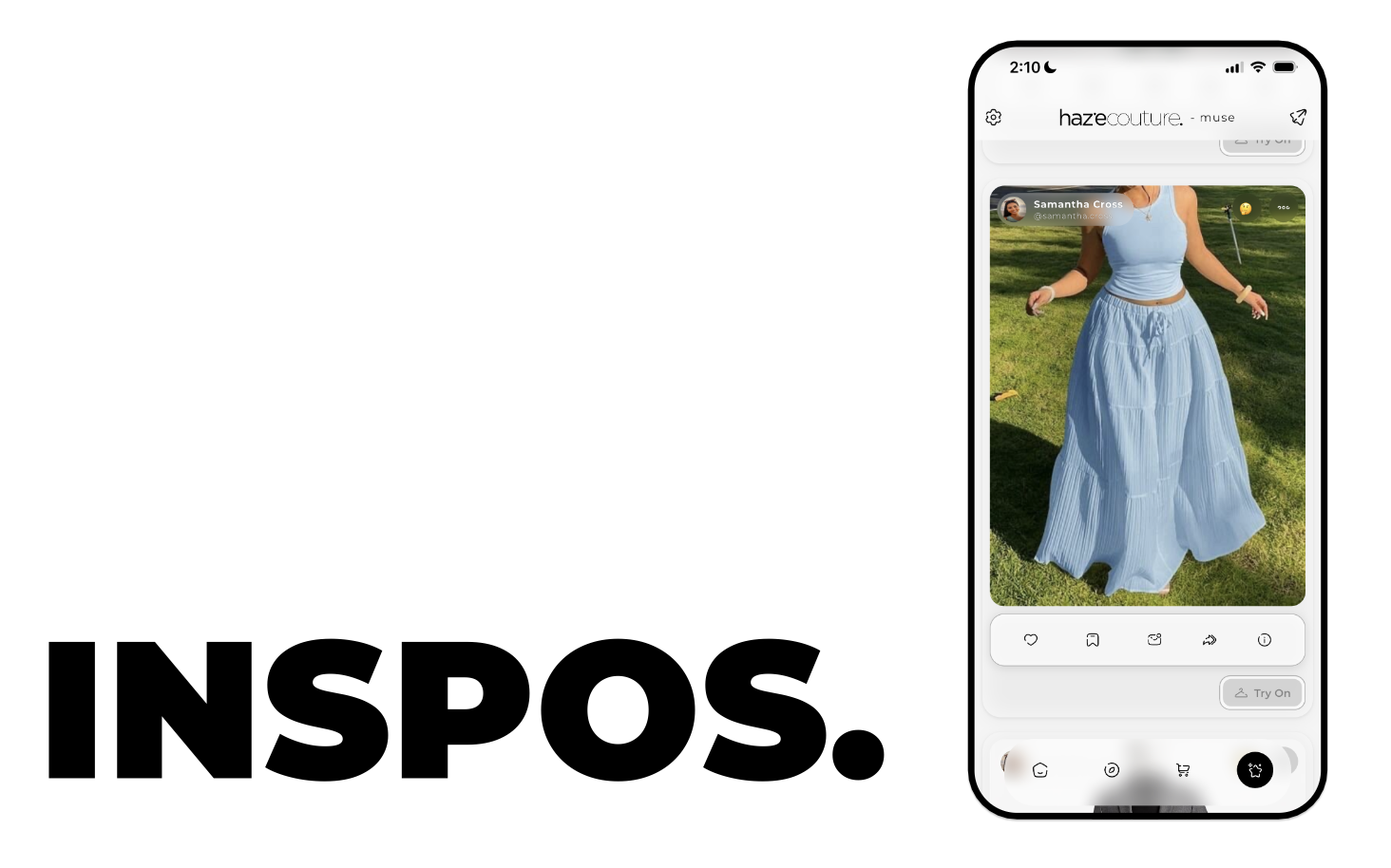
An Inspo is a social post that showcases:
• One or more clothing items
• Or one outfit
• Or multiple items (wardrobe-style)
• Optional caption
• Creator profile
Other users can:
• Like
• Save
• Comment
• Share
• Try on the items
Inspo Try-On opens Shop 3D in try-on mode using the items in that post.
Try-on supports:
• Single clothing item
• Single outfit
• Multiple items (wardrobe try-on, up to 10 items)
You can:
• Create inspos
• Edit your own inspos
• Delete your own inspos
This document covers both the inspo feed and try-on behavior.
When you see it
• Muse → Inspo feed
The main feed displays inspo posts (yours and others’).
• Your Inspos
Muse → Tap Inspos stat card → Shows only your posts.
• Create Inspo
Muse → + → Inspo
• Inspo Try-On
Tap Try on on any inspo card.
Step-by-step flow
Viewing and interacting with inspos
1. Browse feed
• Scroll vertically through inspo posts.
• Each card shows:
• Creator avatar/name
• Image(s)
• Caption
• Action buttons
2. Like
• Tap heart to like.
• Tap again to unlike.
3. Save
• Tap Save.
• Adds post to your Saved items (private).
4. Comment
• Tap Comment.
• Opens comments overlay.
• Read or add comments.
• Close overlay to return.
5. Share
• Tap Share.
• Opens share overlay (link/image/social options).
6. Try on
• Tap Try on.
• Shop 3D opens in try-on mode.
Behavior depends on content:
• 1 item → Opens single-item try-on
• 1 outfit → Opens outfit try-on
• 2–10 items → Opens wardrobe try-on (multi-item mode)
• More than 10 items → Informational message (max 10 allowed)
• No try-onable items → Informational message
Try-on uses the same system as standard Shop 3D try-on.
7. Open creator profile
• Tap creator avatar/name.
• Opens User Profile Overlay.
8. Options (your posts only)
• Tap ⋮
• Options:
• Edit
• Delete
Creating an inspo
1. Go to Muse
2. Tap +
3. Select Inspo
Create flow typically includes:
• Select outfit(s) and/or clothing items
• Add optional caption
• Post
After posting:
• The inspo appears in:
• Muse feed
• Your Inspos
Editing an inspo
1. On your inspo post:
• Tap ⋮
• Select Edit
2. Create Inspo screen opens with prefilled data.
3. Modify items or caption.
4. Save changes.
Post updates in the feed.
Deleting an inspo
1. On your inspo:
• Tap ⋮
• Select Delete
2. Confirmation dialog appears.
3. Confirm deletion.
The post is permanently removed.
What each button and control does
Inspo post card
Creator avatar/name
• Opens User Profile Overlay.
Like
• Toggles like state.
Save
• Saves post to Saved list.
Comment
• Opens comments overlay.
Share
• Opens share overlay.
Try on
• Opens Shop 3D in try-on mode.
• Supports 1–10 items.
Options (⋮) (your posts only)
• Edit
• Delete
Comments overlay
• Displays comments.
• Input field to add comment.
• Close button to dismiss.
Create Inspo screen
Item selection
• Choose clothing items or outfits to include.
Caption
• Optional text.
Post
• Publishes the inspo.
Creating / editing summary
You create inspos from:
• Muse → + → Inspo
You edit or delete only your own posts.
You cannot edit or delete other users’ inspos.
Tips and limits
• Try-on supports a maximum of 10 items.
• If no valid clothing items exist, try-on will not start.
• Likes and comments may be visible to others.
• Saved posts are private.
• Your Inspos screen shows only posts you created.