How to create and manage OOTDs
OOTD stands for Outfit of the Day.
In the app, an OOTD is a daily outfit log where you record what you wore (or plan to wear).
An OOTD includes:
• An outfit (or selected clothing items)
• Optional date
• Optional caption or note
Posting OOTDs contributes to your OOTD streak, shown on Muse.
OOTDs are personal outfit logs. This document covers how to create, view, edit, and delete them.
When you see it
• Muse: OOTD streak card
Displays your current streak (e.g., “5-day streak”). Tap to open your OOTDs.
• Muse: Create OOTD
Tap + → Create OOTD
• OOTDs stat card (Your Stuff)
Shows total OOTDs created. Tap to open OOTD list.
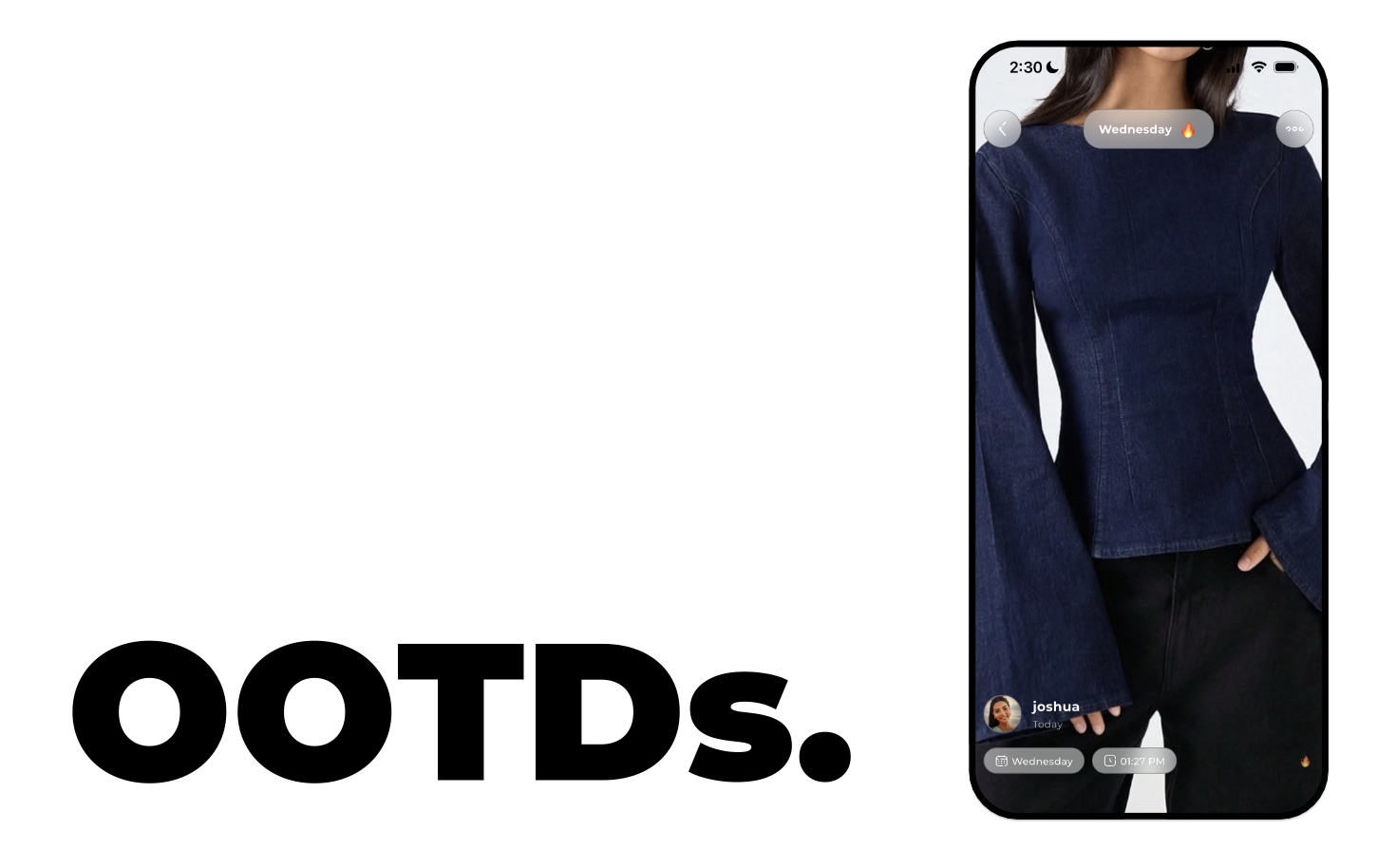
• OOTD detail screen
Opens when you tap an OOTD from your list.
How it works
Creating an OOTD
1. Go to Muse
2. Tap +
3. Select Create OOTD
On the Create OOTD screen:
• Select an outfit (or clothing items)
• Optionally set a date
• Optionally add a caption or note
• Tap Save or Post
After saving:
• The OOTD is added to your list
• Your streak updates (if eligible)
Viewing OOTDs
From the streak card
1. On Muse, tap the OOTD streak card
2. Opens:
• Your OOTD list
• Or the most recent OOTD detail (depending on app behavior)
From the OOTDs stat card
1. Tap the OOTDs stat card in Your Stuff
2. Opens a list of your OOTDs
3. Tap any entry to open OOTD detail
OOTD detail screen
Shows:
• Outfit image
• Outfit name
• Date (if set)
• Caption (if added)
Buttons may include:
• Back
• Edit (if available)
• Delete (if available)
• Share (if supported)
Back returns to the previous screen.
What each control does
OOTD streak card (Muse)
• Displays streak count
• Tap to open OOTD list or latest entry
Create OOTD screen
Outfit selection
• Choose from saved outfits or items
Date (if shown)
• Set or confirm the date
Caption / note (if shown)
• Optional text
Save / Post
• Creates the OOTD
• Updates streak if eligible
Back / Cancel
• Exit without saving
OOTD list
• Displays your logged OOTDs (chronological order)
• Tap an entry to open detail
Editing an OOTD
1. Open the OOTD detail
2. Tap Edit (if available)
3. Modify outfit, date, or caption
4. Save changes
The OOTD updates immediately.
Deleting an OOTD
1. Open the OOTD detail
2. Tap Delete
3. Confirm deletion
The OOTD is permanently removed.
Deleting may affect your streak calculation depending on app logic.
Streak logic
• A streak represents consecutive days with at least one OOTD.
• Missing a day may reset the streak.
• The app may allow only one OOTD per day.
• Creating another for the same date may:
• Replace the existing one
• Show an informational message
Exact behavior depends on implementation.
Tips and limits
• OOTDs are tied to dates.
• Streaks encourage daily engagement.
• OOTDs may be private unless shared (depends on app settings).